



New on FileFortress
Just a download. Web tools are here.
An asset can now be a small website that runs right on its page: interactive maps, calculators, generators, guides and docs. Open one and use it, nothing to install. Or make your own.
For everyone
Using web tools: what they are, why we made them, what they can be, and why they’re safe.
Try one
Web tools on FileFortress
Click one and it opens right on its page, in full. Every one was checked by our team before it went live.

How it works
An asset that opens instead of downloading
A web tool is a small website a creator made: pages, styles, scripts and pictures. Its page on FileFortress becomes the tool itself.
1
Open it
Click a web tool and its page is the tool, ready to use. No download, no install, no account.
2
Make it big
Press Fullscreen to give it the whole screen. It works on phones too.
3
In your theme
Tools built with our kit follow the site theme you picked: FileFortress, Fortress Glow or Glass.
4
Keep what you make
Save your work as a file and open it again next time. It stays on your device.
Web tools also run in the FileFortress desktop app: open them next to your downloads and your project, without switching to a browser.
The idea
Why web tools
Some things are hard to share as a file and easy as a page. A map players keep open in a second tab, a calculator instead of a spreadsheet, a manual that sits right next to the asset it explains. So an asset on FileFortress can now be a page that does something.
For everyone who uses them
Open it and use it, right where you found it. Nothing to install, no account, the same on your phone and in the desktop app.
For creators
Show your work instead of describing it: an interactive version of your map, documentation next to your asset, a tool for your community. No website of your own needed.
For the community
Every tool is in one place, checked by our team, and sealed off from your account. Useful tools find their people, and nobody has to trust a random website.
What they can be
Ideas for web tools
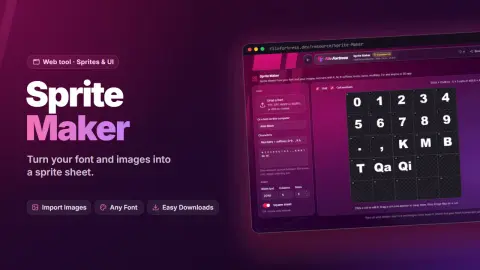
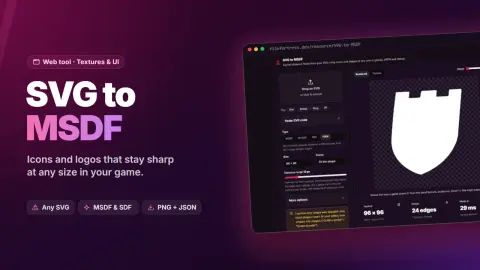
Maps, calculators, generators, planners, docs, texture helpers: anything that runs in a browser with its own files.
Interactive maps
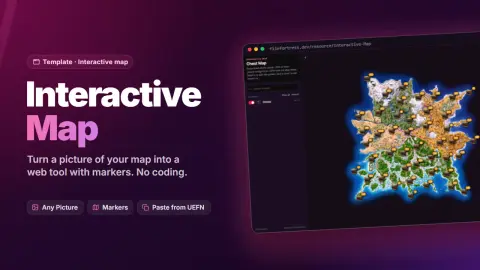
Chests, spawns, routes and secrets on your island, with filters and a search. The kind of map players keep open in a second tab.
Damage110Fire rate5.5/sHeadshot×1.5DPS 907
Calculators
Damage, XP, timings, storm phases, currency or build costs. Type in your numbers and get the answer instead of a spreadsheet.
Generate
Generators
Color palettes, names, loot tables, random layouts, noise for heightmaps. One click, a new result, copy it into your project.
Planners
Lay out an island, a base or a level on a grid before you build it. Share the link with your team.
Showcases
A gallery of your prefabs, a changelog for your map, a portfolio of your work. Your page, your look.
var Score : int = 0OnBegin<override>()<suspends> : void = Print("Ready!")// try it: change the text
Tutorials and cheat sheets
Beginner tutorials you click through step by step, Verse cheat sheets, a device reference with a search. Learn by doing instead of scrolling.
Getting startedInstallSettingsDevicesFAQWorks in the desktop app
Documentation for your upload
A full manual next to your asset: install steps, settings, every device explained, with a search. It opens right on the page and in the desktop app, so people never need a separate website.
Height → NormalPack R·G·B → ORMMake seamless
Texture tools
Turn a height map into a normal map, pack texture channels (like roughness, metallic and AO into one ORM map), make a texture tile without seams, resize or convert it. Quick helpers for texture artists, right in the browser.
Look: Wet chromeRoughnessMetallicGlowThe creator's settings, ready to copy
Your material, the way you made it
Set your material up for a certain look and build a small tool that recreates it: the exact settings, lighting and effect you used, with a short note on each. People see it the way you intended and copy the setup into their project.
Safe by design
Sealed off, and checked by our team
A web tool runs in your browser, so we keep it in a box. It can only use the files it came with, and it can't reach anything else.
- It can’t see your account
No access to your sign-in, cookies or anything else on FileFortress. It runs in its own sealed frame.
- Nothing from other websites
No trackers, no ads, no outside scripts. A tool can only load its own files.
- What you do stays with you
What you type, make or open in a tool isn’t sent anywhere. The rules forbid collecting anything about you.
Our part
- Checked before it goes live
Our team opens every web tool and checks it against the rules before anyone sees it, and every update again.
- Sealed off
Your browser keeps each tool away from your account, the page around it and other websites.
- Something wrong? Report it
Every web tool page has Report. We look at it, and we can switch a tool off right away.
- Still yours
You stay the owner of your tool and choose its license, like with any upload. Tools built on our templates stay on FileFortress.
Questions
Good to know
Do I need an account to use a web tool?
No. Open its page and use it, like any page on FileFortress.
Can a web tool see my files or my account?
No. It runs sealed off: it can’t see your sign-in, read files on your computer (only one you pick yourself to open in it), or send anything anywhere.
Can I download a web tool?
Its creator decides. Some can be downloaded as a zip to run on your own computer; others only run on FileFortress.
Does it work on my phone?
Yes, web tools run in any up-to-date browser. Bigger tools work best on a big screen: use Fullscreen.
A tool does something it shouldn’t. What now?
Press Report on its page and tell us what happened. Our team looks at it and can switch it off right away.
Who can make one?
Anyone who can build a small website, or start from a template or with an AI. Start with the Web Tool Guide and the kit above.
For creators & developers
Making one: where to start, what you decide, the rules, our templates, every detail, and where it’s going.
Make your own
Everything you need to build one
HTML, CSS and JavaScript, in a zip with an index.html. Not a web developer? Start from a template, or let an AI write it with our file.
Web Tool Guide
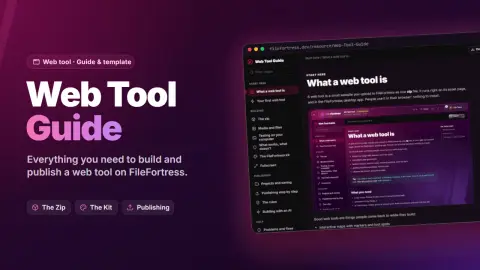
Step by step: your first tool, the zip, media, testing, publishing, and fixes for the usual problems.
Open the guideThe FileFortress kit
Our buttons, cards, fields, sidebar, dialogs, icons and colors, ready to use. Your tool looks like it belongs here and follows every visitor's theme.
See the kitA file for your AI
Building with ChatGPT, Claude or Gemini? Give it our file first: what works, the rules and every kit piece.
Get the fileUpload it
Upload → Web tool. Save it as a private project, test it on your computer with ff-dev.js, then publish.
Upload a web tool
A zip with an index.html
Up to 300 files, 50 MB
Each file up to 4 MB
Plus 30 media files, not counted
Only its own files
Your tool
Everything around your zip
Pictures, videos, sounds and downloads go next to the zip, and you decide whether people may download your tool.
Media and files go next to your zip
Big files don't have to squeeze into the zip. When you upload a web tool, add up to 30 files: pictures (PNG, JPG, WEBP, AVIF) up to 15 MB, GIFs up to 25 MB, videos (MP4, WEBM) up to 100 MB and sounds (MP3, OGG, WAV) up to 25 MB. Writing a guide? Add files people download from it too: a texture pack, a model, an HDR or a PDF. None of them count toward your zip's 50 MB, so you won't run out of room. We keep them on our servers, and your code uses them by name from the folder ff-media/.
- The name stays as you upload it (spaces become dashes):
Island Map.pngisff-media/Island-Map.png. - Swap a file later with Replace on its card on your edit page (the name stays). No new zip needed.
- They are public like your gallery pictures (anyone with the link can see them), and our team checks them like your other files.
<!-- in your index.html -->
<img src="ff-media/Island-Map.png">
<video src="ff-media/trailer.mp4" controls></video>
<a href="ff-media/Rock-Textures.zip" download>Get the textures</a>

/* in your CSS */
background-image: url(ff-media/sky.webp);

// in your JavaScript
new Audio('ff-media/click.mp3').play();
Your tool, your choice
When you upload a web tool, you decide what people may do with it.
Open to download
People can use your tool on its page and also download the whole zip, to run it on their own computer or learn from your code.
Only on FileFortress
Your tool stays with us: people use it on its page (and in the desktop app), and there's no download button. Its files are only sent to run it, like any website's.
We're also working on notifications for web tools, so you hear when yours is checked, goes live or gets a report, and people who use a tool can hear when it gets an update.
The rules
Safe for everyone who opens it
A web tool runs in the browser of everyone who opens it, so it has a few extra rules on top of the normal ones for uploads. They're in our Terms of Service (section 6); the last one is being added there.
- No pretending
Never pose as another website or company, or ask for passwords, sign-ins or payment details.
- No collecting data
Nothing about the people who use it: no names, emails, what they type or where they are. No tracking.
- Nothing hidden
No malware, crypto miners or hidden functions, and nothing that downloads or runs on their device.
- Only its own files
Just the files in your zip and the media you upload with it. Nothing from other websites.
- Does what it says
It does what its title and description say. Nothing more, nothing different.
- Nothing leaves the deviceBeing added to our Terms
No click counters or analytics, and nothing people type, make or open is sent anywhere. Their work stays with them.
Our part
- Checked first
Our team opens every web tool and checks it against these rules before it goes live.
- Sealed off
Browsers keep each tool away from accounts, the site around it and other websites.
- Switched off fast
If a tool breaks the rules, we switch it off while we look into it.
- Still yours
You stay the owner of your tool and choose its license, like with any upload. Tools built on our templates stay on FileFortress.
Start from ours
Templates you can download
Change the content, keep the rest. Free, under the FileFortress Template License: use and change them however you like, publish what you make on FileFortress.
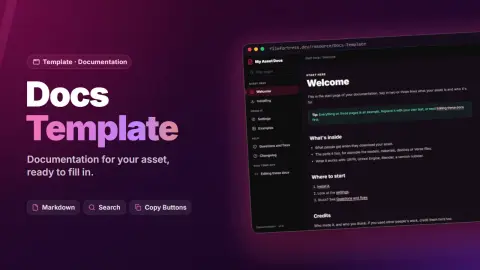
Docs
ReadyDocumentation for your asset: write your pages in Markdown, it does the sidebar, search, code with Copy buttons, pictures and downloads. Made like our Web Tool Guide.
Get the Docs templateInteractive Map
ReadyDrop in a picture of your map, place markers with your own categories and icons (or paste them straight from UEFN), and export a ready web tool. No coding. See the example.
Get the Interactive MapWeb Tool Guide
ReadyThe guide itself as a template: a full wiki with groups of pages, search and screenshots. Make it your own for a bigger project or a whole set of tools.
Get the Web Tool GuideFileFortress Template License 1.0
- Change it however you like: use it on your own computer, edit it, build your own tools on top of it.
- Only on FileFortress: the template's code and anything made with it may only be published and hosted here. Not on other websites, your own site, app stores, launchers or other file sharing sites.
- Your content stays yours: your pictures, pins, pages, names and notes belong to you. The license only limits where the template's code may be used.
For developers
How web tools work
The details for building one: the zip, saving, media, testing, the kit, AI, 3D and sound, and what a web tool can’t do.
How do I turn my website into a web tool?
Put your site in a .zip. The index.html closest to the top of the zip is the start page, and everything next to it belongs to the tool. Link your files with relative paths (css/style.css, not /css/style.css or a full web address).
- Up to 300 files and 50 MB in the zip, each file up to 4 MB. Bigger pictures, videos and sounds go next to the zip as media.
- File types the tool can use from the zip: HTML, CSS, JavaScript (also modules and web workers), JSON, CSV, text, pictures (PNG, JPG, WEBP, AVIF, GIF, SVG), fonts (WOFF, WOFF2, TTF, OTF), WebAssembly, sounds, videos and GLB models.
- Libraries like three.js go into the zip too: a web tool can't load anything from other websites (no CDNs, no Google Fonts).
- Then upload it under Upload → Web tool. Press Save any time: it's a project only you see, and Try it runs it exactly like visitors will. Our team checks it before it goes live.
my-tool.zip
├─ index.html        <- the start page
├─ css/style.css
├─ js/app.js
└─ img/logo.png

<!-- in index.html: relative paths -->
<link rel="stylesheet" href="css/style.css">
<script type="module" src="js/app.js"></script>
How do I make the zip without mistakes?
Keep your tool in a folder called tool and let a script build the zip. Our templates come with two, and the kit's file for your AI makes an AI set up the same:
- Preview.bat shows your tool in your browser (a double-clicked
index.htmlcan't load its own files). - make-zip.bat builds
dist/<name>.zip, the file you upload. It leaves outff-dev.js, yourff-mediacopies and anyff-kitfolder. - Never put your own
ff-kitfolder in the zip: it replaces our kit on the site, and your tool loses the visitor's theme, the background and the icons.
my-tool/
├─ tool/          <- only this goes in the zip
│  ├─ index.html
│  └─ ff-dev.js    <- yours, left out
├─ Preview.bat
├─ make-zip.bat
└─ dist/my-tool.zip <- upload this
Can my web tool save what people make?
Not on our servers and not in the browser: a web tool runs sealed off, so it has no cookies, local storage or other browser storage, and it may not send anything anywhere. What people make stays on their own computer:
- Downloads work. Let people save their work as a file (for example JSON, PNG or a zip you build in JavaScript).
- Opening files works. A file picker (
<input type="file">) or drag and drop lets them load it again next time.
Files in your zip people may download (a source file, an example): link them with download and use kit.js, or add ?download to the address: <a href="source/code.txt?download">. A plain link would open the file inside your tool.
// save: people download their work as a file
const file = new Blob([JSON.stringify(project)], { type: 'application/json' });
const link = document.createElement('a');
link.href = URL.createObjectURL(file);
link.download = 'my-map.json';
link.click();

// load it again next time: <input type="file" accept=".json">
picker.onchange = async () => {
  project = JSON.parse(await picker.files[0].text());
};
How do ff-media files work in my code?
Media you upload next to the zip is used by name from the folder ff-media/, for example ff-media/Island-Map.png. The name is the file name with spaces turned into dashes; the upload form shows it for every file.
- Works anywhere a browser shows media:
<img>,<video>,<audio>,new Audio()and CSS likebackground-image. - Pictures, videos and sounds are shown, not read: a canvas or WebGL can't read their pixels. Need the pixels (for example a texture you edit, or a heightmap you sample)? Put that file in the zip instead.
- JSON, TXT and CSV files in
ff-media/(up to 4 MB) can be read withfetch(). - Use paths relative to the start page. From a page in a sub folder, write
../ff-media/. - To swap a file later, press Replace on its card on your edit page (or upload one with the same name): the name in your code stays the same, no new zip needed.
<!-- shown: from ff-media/ (from a sub folder: ../ff-media/) -->
<img src="../ff-media/Island-Map.png">
<video src="ff-media/trailer.mp4" autoplay muted loop></video>

// read in code (canvas, WebGL, fetch): put it in the zip
const heights = await fetch('data/heightmap.json').then((r) => r.json());
How do I test it on my computer?
Use ff-dev.js: a small file with a private link to your project. With it, ff-kit/ and your ff-media/ files load on your computer exactly like on FileFortress.
- Get it: Upload → Web tool → step 2 → Save & get ff-dev.js. Already saved? Your project → step 2 → ff-dev.js. Published already? Its edit page has it too.
- Put it next to your
index.htmland make it the first line in<head>. - Keep it out of the zip, and don't share it (or paste it into an AI chat): it's your private link. New link replaces it.
- Looks plain and unstyled? The kit isn't loading:
ff-dev.jsis missing, not first, or you're looking at a preview inside another app instead of the file itself.
<head>
  <script src="ff-dev.js"></script>   <!-- first: only works on your computer -->
  <link rel="stylesheet" href="ff-kit/kit.css">
  <script src="ff-kit/kit.js"></script>
</head>
Should I use the kit?
Yes, for the interface. The kit is served as ff-kit/ next to your tool, nothing to download. Build from its pieces (buttons, cards, tabs, fields, the top bar, the sidebar, sliders, dialogs, icons) instead of your own CSS:
- With
kit.jsyour tool follows each visitor's site theme (FileFortress, Fortress Glow, Glass), and the site's background shows behind it. Colors you write yourself don't, and look wrong in the others. - Your zip stays smaller and loads faster.
- Keep your own CSS for what no piece covers, and use the
--ff-color variables there. Don't givehtmlorbodya background of your own. - The kit never renames or removes a class, so what you build today keeps looking right.
Can I build it with an AI?
Yes. Give the AI our file first: on the kit page, press For your AI. Without it, AIs reach for things that are blocked here (CDNs, browser storage, new tabs).
- The file makes the AI ask for
ff-dev.jsfirst, build the interface from the kit, set up Preview.bat and make-zip.bat, and use your tool's own name, not another website's. - Read the code before publishing: you're responsible for what your tool does. Based it on someone's open-source code? Keep their license and credit them in the tool itself.
- Tick Made with AI when you upload (step 3, More details).
Can a web tool use 3D (WebGL) or sound?
- 3D: yes, WebGL and WebAssembly work. Put the library and the models and textures it loads into the zip, so your code can read them.
- Sound and video: yes, play them with
<audio>,<video>ornew Audio(), from the zip or fromff-media/. Sounds you analyse or mix with the Web Audio API go into the zip. - Games and viewers: pointer lock (for mouse look) and dialogs like
alert()work. - Python: only in the browser, built for WebAssembly and put in the zip. MicroPython (a few hundred KB) fits easily; Pyodide (numpy, pandas) is bigger than the 4 MB a file may be.
import * as THREE from './lib/three.module.js';  // in your zip, no CDN

const ground = new THREE.TextureLoader().load('textures/ground.png');
canvas.onclick = () => canvas.requestPointerLock();  // mouse look
new Audio('ff-media/theme.mp3').play();
What can't a web tool do?
To keep everyone who opens it safe, a web tool runs sealed off from the rest of FileFortress:
- It can't see who is signed in, and it has no cookies or browser storage.
- It can't connect to or load anything from other websites, and it can't send forms.
- It can't open pop-ups or new tabs, or use the camera, microphone or location. Fullscreen is our button: visitors press it, and
kit.jstells your tool. - It can't change the page around it: it lives inside its own frame on the asset page (and in the desktop app).
// these are blocked inside a web tool:
fetch('https://example.com/track');   // other websites
localStorage.setItem('save', data);   // browser storage
window.open('https://example.com');   // pop-ups and new tabs
document.cookie;                      // cookies and sign-ins
Which templates are there?
Three are ready, each on its own page with the download and the details:
- Docs: documentation for your asset. Write your pages in Markdown, it does the sidebar, search and the rest. Docs Template
- Interactive Map: a picture of your map with markers, categories and your own icons, made in the Map Maker (paste markers straight from UEFN), no coding. Interactive Map
- Web Tool Guide: the guide itself as a template, a full wiki with groups of pages and screenshots. Web Tool Guide
Every template comes with the FileFortress Template License: you may change it however you like, but the template's code and the tools you make with it may only be published and hosted on FileFortress. Everything you add yourself stays yours.
The way here
From idea to launch
Five steps, worked out together with creator accounts on our New tools page. This page is the last one.
Done
Rules in our Terms
The web tool rules went into our Terms of Service (section 6), in effect from 14 October 2026.
Done
Planned with creators
Creator accounts worked out the details with us: what web tools should do, the rules, the templates. Their questions shaped all of it.
Done
The kit, the guide, the templates
The FileFortress kit with a file for your AI, the Web Tool Guide, and the Docs, Interactive Map and Web Tool Guide templates.
Done
The first tools, in private
Creators built and tested the first web tools as private projects: tried on the site, tested on their own computers with ff-dev.js.
Now
Web tools for everyone
Everyone can open web tools, they’re on Explore, and every creator can publish one.
What’s next
Where web tools go from here
The launch is a start. Here’s what we’re working on and thinking about, and how you can steer it.
- Build it together
Tag other creators as collaborators and let them edit your web tool with you: they find it in their My uploads.
- Notifications for web tools
We’re working on them: hear when your tool is checked, goes live or gets a report, and let people follow a tool’s updates.
- Live Island Map
The next big one: your UEFN island captured straight from UEFN, sharp up close, with your markers. The Interactive Map does it by hand until then.
- More templates
A calculator starter and a gallery are the next ideas on our list. Which comes first depends on what creators ask for.
- Tools that remember
We’re thinking about letting tools save your progress and settings in your own browser, and about data tables creators can update without a new upload. Your feedback after launch decides it.
- Your ideas
Built something we didn’t think of, or missing a piece in the kit? Tell us: the best web tools so far came from creators’ ideas.
Built with creators
Tested in private before it opened
Before web tools opened to everyone, creator accounts built the first ones with us, in private. They asked their questions on our New tools page, and their tools and feedback shaped what you see now:
- The sandbox: what a tool can and can't do was tried out in the exact frame tools run in, and written down for creators.
- The uploader: save a tool as a private project, try it on the site, test it on your own computer, then publish.
- The kit and templates: our pieces, a file for AI assistants and the first templates, improved with every tool creators built.
my-tool.zip
├─ index.html     <- opens on its page
├─ css/style.css
├─ js/app.js
└─ img/logo.png

+ up to 30 pictures, videos and sounds
  next to it, as ff-media/